If you’re getting ready to resume in-person training, your head is likely spinning with questions like:
How will I maintain smaller class sizes?
How will I make the process as simple as possible for members to register for classes?
How will I eliminate the hand-to-hand exchange of membership cards and key tags during check-in?
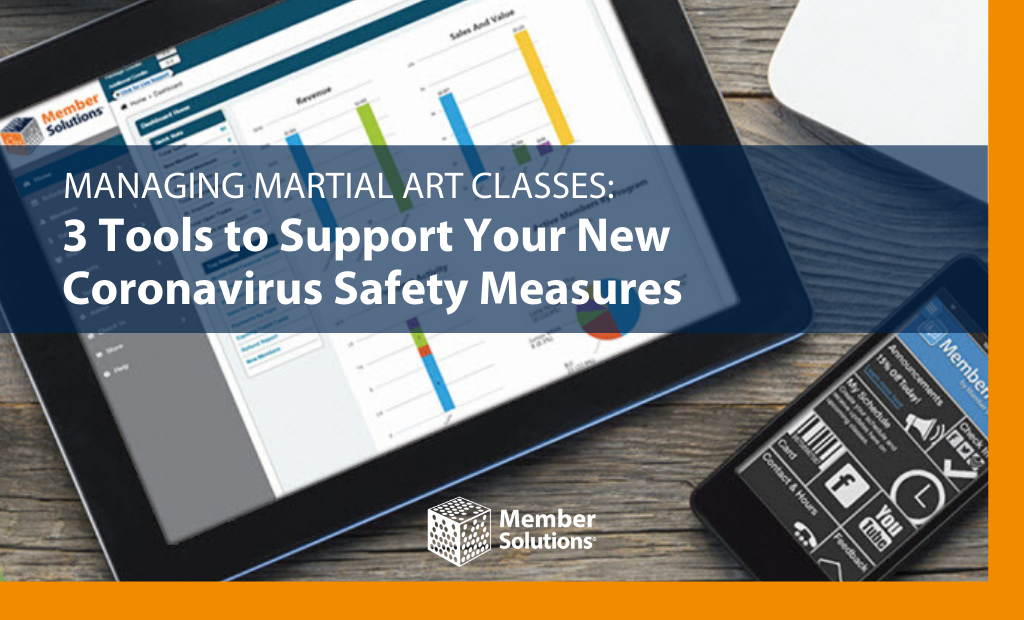
Here we cover 3 tools within our software and app that take the headache out of class management and, at the same time, support the implementation of new coronavirus safety measures you put in place at your facility.
1. Class Capacity
Setting class capacity helps you:
- Cap classes at a certain set number based on room size
- Allow access to the class on a first-come, first-served basis
How to Set Class Capacities in Member Manager Software
To add a class to your facility’s schedule is extremely easy. Simply click on the time slot on the schedule that you want the class to begin on, such as 6 pm.
Within each class screen, you can set details: such as class capacity, waitlist capacity, and instructor.
Enter your maximum class capacity for the class into the “Class Capacity” field. The spots available will be included on your website’s class schedule automatically.
When someone registers for a class online, the number of spots left will update in real-time.
2. Waitlists
Activating waitlists helps you:
- Ensure classes are filled
- Track the demand for specific classes
- Better manage your class schedule and offerings
How to Activate Waitlists in Member Manager Software
The class screen within Member Manager software also includes automatic waitlist functionality. Simply enter the capacity allowed to be waitlisted into the “Waitlist Capacity” field.
If a class reaches maximum capacity, members will be shown the option to be added to a waitlist. If a scheduled member cancels their class registration, the software will automatically email the member on the waitlist to inform them that a spot has opened and provide a link to register for the class.
3. Contactless Check-In
Enabling contactless check-in helps you:
- Eliminate the hand-to-hand exchange of membership cards and key tags
- Make the check-in process quicker, more efficient, and sanitary
How to Enable Contactless Check-In through the MemberAssist App
Though only one part of the MemberAssist App, the electronic Member ID is an extremely convenient and popular function among our users. An electronic barcode that is stored within the member app on your member’s phone acts as your member’s virtual membership card.
Members simply click on the barcode tile to access their electronic barcode, scan the barcode when entering your facility, and their check-in is complete. All the check-in information syncs with the Member Manager software database.
With the app, members can also:
- Access your class schedule and book classes directly from the app
- Update their social media status based upon a class booking
- Receive “push notifications” to be immediately updated on schedule changes, facility news, class availability, and promotions
- Add classes booked directly to their smartphone calendar